Last Updated: June 2, 2026
Dataloader for Salesforce: Import, Update, Export
dataloader is the search term many Salesforce admins use for Data Loader, the official client application used to insert, update, upsert, delete, hard delete, and export Salesforce records. Use it when a browser import tool is too limited, when you need repeatable CSV mappings, or when a data change must run through Salesforce APIs with result files you can audit.
This guide explains when to use Data Loader, when the Data Import Wizard is enough, how to prepare CSV files, how to choose dataloader alternatives, and how to reduce failed rows in production data work.
Dataloader: what it does in Salesforce
Data Loader is a desktop client for bulk import and export. Salesforce documents it as a tool that reads CSV files or database connections for imports and writes CSV files for exports. The current official guide states that Data Loader can be used from a wizard interface, and that the command-line interface is available for automated batch work on Windows. See the official Salesforce Data Loader Guide before you run a high-volume load.
What is a data loader in Salesforce?
what is a data loader usually means: what tool moves records between a CSV file and Salesforce without building a custom integration. In Salesforce, the official Data Loader supports standard and custom objects, field mapping, success and error files, exports with SOQL, and API-based processing. It is not a duplicate management system, ETL platform, or data quality engine by itself.
Data loader for Salesforce operations
A data loader for Salesforce should be selected by operation, not by habit. Insert creates records. Update changes existing records by Salesforce record Id. Upsert inserts or updates by Id or External ID. Delete sends records to the Recycle Bin. Hard Delete removes records without Recycle Bin recovery when the user has the required permission and Data Loader is configured with Bulk API or Bulk API 2.0. Export and Export All produce CSV files; Export All includes deleted and archived records where the API returns them.
| Operation | Required identifier | Use case | Main risk |
|---|---|---|---|
| Insert | No existing Id | Create Accounts, Contacts, Products, custom records | Duplicate records if matching rules are not reviewed |
| Update | Salesforce Id | Change field values on existing records | Wrong Id updates the wrong record |
| Upsert | Salesforce Id or External ID | Merge source-system data into Salesforce | Non-unique external IDs cause failed rows |
| Delete | Salesforce Id | Remove records with Recycle Bin recovery | Child records, sharing, and automation can block the delete |
| Hard Delete | Salesforce Id | Permanent cleanup after approved archive | No Recycle Bin recovery |
| Export | SOQL query | Extract records for backup, review, or migration | Field-level security and query selectivity affect results |
In enterprise orgs, treat every load as a release activity. A 20-row CSV can still fire flows, assignment rules, duplicate rules, Apex triggers, platform events, and integrations. The record count matters, but the automation behind the object often matters more.
How to choose a Salesforce data uploader
A salesforce data uploader can be a built-in wizard, the official Data Loader, a cloud service, an Excel connector, or a deployment tool for reference data. The right choice depends on object support, volume, automation, security review, and whether the source file needs transformation before it reaches Salesforce.
Data Import Wizard versus dataloader
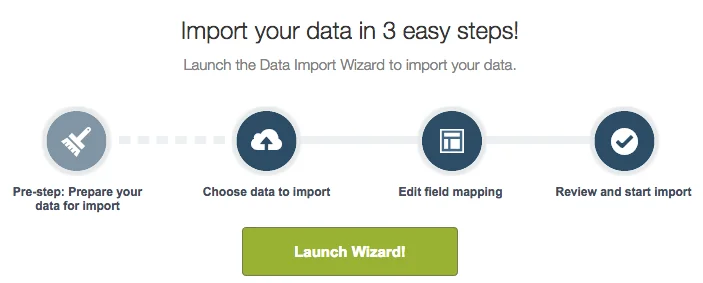
The Data Import Wizard is useful for guided imports from Setup. Salesforce Help states that the wizard can import up to 50,000 records at a time, and Trailhead describes it for common standard objects and custom objects. It is a good first choice for small lead, account, contact, and custom object imports where the supported action fits the job.
Use dataloader instead when you need export, delete, hard delete, larger volumes, reusable mapping files, command-line automation, or an object that the wizard does not support. Salesforce Trailhead states that Data Loader is appropriate for 50,000 to 150 million records, subject to org limits, permissions, data type, and storage. Confirm the current limit in Salesforce’s When to Use Data Loader documentation before planning a large migration.
Dataloader alternatives for admins and architects
dataloader alternatives are worth reviewing when the official desktop tool does not match the operating model. A cloud task runner can help when the admin needs browser-based access or scheduling. A spreadsheet connector can help when users review and edit rows in Excel before upload. A data deployment tool can help when the job is not a flat CSV import but a movement of related setup or reference data between orgs.




| Tool category | Best fit | Not a good fit when | Governance check |
|---|---|---|---|
| Data Import Wizard | Small guided imports | You need export, delete, automation, or unsupported objects | Confirm object support and 50,000-record limit |
| Official Data Loader | CSV-based bulk import, update, upsert, delete, export | You need complex transformations before load | Use latest supported version and least-privilege permissions |
| Cloud loader | Scheduled browser-based tasks | Data policy blocks external processors | Review connected app scopes, vendor terms, and audit logs |
| Spreadsheet connector | Admin-managed data correction in Excel | Rows must pass an approval workflow before upload | Control who can mass update production data |
| Data deployment tool | Related reference data across orgs | The task is a simple one-object CSV insert | Validate rollback, masking, and ownership behavior |
How to prepare CSV files before using dataloader
Most dataloader failures start before the login screen. Prepare the file, object permissions, and automation plan first. Salesforce’s Bulk API 2.0 documentation requires CSV files for ingest jobs, and Data Loader imports from CSV files, so CSV quality determines how much rework the admin faces after the run.
CSV checklist for a data loader for Salesforce
- Export a backup first. Before update, upsert, delete, or hard delete, export the target records with Id, the fields you plan to change, and audit fields that help rollback.
- Use Salesforce Id for updates. Use the 18-character Id when possible. The 15-character Id is case-sensitive and can cause problems outside Salesforce tools.
- Use External ID for upsert. Mark the field as External ID and keep values unique when the source system owns the key.
- Match picklist values exactly. Restricted picklists reject unknown values. Unrestricted picklists can accept new values, which may not be what the data owner wants.
- Normalize dates and time zones. Store Date and DateTime values consistently. For DateTime, confirm user locale and time zone before the load.
- Decide how blanks should behave. Blank cells do not always mean “clear the Salesforce field.” In Data Loader settings, review Insert Null Values. With Bulk API behavior, Salesforce documentation notes that
#N/Acan be used to set a field to null. - Run a small test file. Use 5 to 20 rows that include common, edge, and bad data cases. Review success and error files before the full load.
Example update file for Account data:
Id,External_Customer_Id__c,Name,Customer_Tier__c,Support_Status__c
0015g00001A1b2CAAR,CUST-10001,Acme Distribution,Gold,Active
0015g00001A1b2DAAR,CUST-10002,Northern Parts,Silver,#N/A
0015g00001A1b2EAAR,CUST-10003,Blue River Manufacturing,Bronze,Onboarding
In this example, the second row intentionally clears Support_Status__c when the selected API mode supports the documented null marker. Do not use this pattern until you have tested it in a sandbox with the same Data Loader setting and API mode that production will use.
How to use dataloader for insert, update, upsert, and export
The official interface is a wizard, but the work should still follow a controlled sequence. The user running the load needs API Enabled plus object and field permissions for the selected operation. Data Loader does not bypass CRUD, FLS, validation rules, duplicate rules, required fields, or automation.
Before you log in
- Confirm the business owner, target object, operation, expected row count, and rollback approach.
- Export current records when the operation changes or removes existing data.
- Prepare the CSV with only required columns and fields you intend to change.
- Check validation rules, required fields, duplicate rules, flows, Apex triggers, assignment rules, and integrations.
- Run the same file shape in a full or partial sandbox when the object has production automation.
UI steps for Data Loader
- Open Data Loader and log in with the correct production or sandbox endpoint.
- Select Insert, Update, Upsert, Delete, Hard Delete, Export, or Export All.
- Select the target object. Enable “Show all Salesforce objects” if the object is not visible.
- Choose the CSV file. For upsert, choose the Id or External ID field that identifies matching records.
- Create or load the mapping file. Map only the columns you intend to process.
- Choose output locations for success and error files.
- Run the operation and review result files before telling users the job is complete.
SOQL export example
Use selective filters for large exports. Exporting every field increases file size and review time. This SOQL example exports Accounts changed during a controlled migration window:
SELECT Id, Name, External_Customer_Id__c, Customer_Tier__c, LastModifiedDate
FROM Account
WHERE LastModifiedDate >= 2026-06-01T00:00:00Z
AND LastModifiedDate < 2026-06-02T00:00:00Z
ORDER BY LastModifiedDate ASC
For very large operations, review Bulk API 2.0 behavior. Bulk processing runs asynchronously, so the admin must monitor completion, review failed rows, and confirm downstream automation results.
How to automate dataloader with the command line
Data Loader command-line automation is useful for scheduled imports, nightly extracts, and repeatable admin jobs. Salesforce documentation states that the command-line interface is supported on Windows. For cross-platform or high-control integration work, architects often use Bulk API 2.0 directly instead of wrapping desktop tooling.
Command-line components
- Mapping file. An
.sdlfile maps CSV columns to Salesforce fields. - Process configuration.
process-conf.xmldefines the operation, object, endpoint, username, encrypted password, input file, and output files. - Encrypted password. Data Loader command-line jobs use an encryption key file and encrypted password. Keep both outside shared folders.
- Scheduler. Use Windows Task Scheduler or an enterprise scheduler after the job works manually.
Example mapping file:
# accountUpdateMap.sdl
Id=Id
External_Customer_Id__c=External_Customer_Id__c
Name=Name
Customer_Tier__c=Customer_Tier__c
Support_Status__c=Support_Status__c
Example configuration pattern. Replace paths, endpoint, username, and encrypted password values. Do not paste real credentials into documentation or source control.
<beans>
  <bean id="accountUpdate"
        class="com.salesforce.dataloader.process.ProcessRunner"
        singleton="false">
    <description>Update Account customer tier values from approved CSV</description>
    <property name="name" value="accountUpdate"/>
    <property name="configOverrideMap">
      <map>
        <entry key="sfdc.endpoint" value="https://login.salesforce.com"/>
        <entry key="sfdc.username" value="integration.user@example.com"/>
        <entry key="sfdc.password" value="ENCRYPTED_PASSWORD_VALUE"/>
        <entry key="process.encryptionKeyFile" value="C:\secure\dataloader.key"/>
        <entry key="sfdc.entity" value="Account"/>
        <entry key="process.operation" value="update"/>
        <entry key="process.mappingFile" value="C:\loads\accountUpdateMap.sdl"/>
        <entry key="dataAccess.name" value="C:\loads\account-update.csv"/>
        <entry key="process.outputSuccess" value="C:\loads\out\account-update-success.csv"/>
        <entry key="process.outputError" value="C:\loads\out\account-update-error.csv"/>
        <entry key="dataAccess.type" value="csvRead"/>
      </map>
    </property>
  </bean>
</beans>
Command-line dataloader jobs need monitoring. A scheduled job that writes an error CSV but does not alert anyone is not an integration; it is a silent failure waiting to be discovered by users.
Best practices for dataloader security and performance
Use least privilege. A user who only updates Account billing fields should not have broad delete or hard delete access. Assign API Enabled and object permissions through a permission set where possible, then limit field access with field-level security. For production loads, use a named integration or admin account that your audit process can identify.
Control Bulk API behavior
By default, Data Loader uses the SOAP-based API. Salesforce lets admins configure Bulk API or Bulk API 2.0 for large loads. Bulk API uses asynchronous processing and can reduce network round trips, but parallel processing can increase row-lock contention when many rows touch the same parent records. Use serial processing when lock errors appear around ownership changes, roll-up summaries, or master-detail children.
Plan around automation
Flows, Apex triggers, validation rules, duplicate rules, territory assignment, roll-up summaries, and external integrations run according to Salesforce platform rules. Do not disable automation casually. In enterprise orgs, create a temporary bypass only when the data owner, architect, and release manager approve it, and make the bypass auditable through custom permissions or controlled metadata.
Rollback pattern
- Export the target records before the load.
- Keep the original CSV, mapping file, success file, and error file together.
- For update rollback, build a reverse CSV from the pre-load export and the success file Ids.
- For insert rollback, delete only the records in the success file after confirming no users or automation have created dependent records.
- For hard delete, require a separate approval because Recycle Bin recovery is not available.
For object design and SOQL review, see our internal guides on Salesforce objects and fields, SOQL query examples, permission sets in Salesforce, and Salesforce Flow automation.
Common dataloader errors and how to fix them
Read the error file row by row. Do not rerun the same CSV until you understand whether the problem is data, permission, validation, lookup matching, locking, or automation.
| Error pattern | Likely cause | Fix |
|---|---|---|
INVALID_FIELD |
The mapped field API name does not exist or the user cannot access it | Check field API name, object selection, and field-level security |
REQUIRED_FIELD_MISSING |
A required field, lookup, or rule-dependent value is missing | Add the field to the CSV or adjust the source data |
FIELD_CUSTOM_VALIDATION_EXCEPTION |
A validation rule rejected the row | Fix the data or use an approved, temporary bypass pattern |
DUPLICATES_DETECTED |
Duplicate rules blocked or warned on the row | Review matching rules and decide whether merge, update, or exception handling is correct |
UNABLE_TO_LOCK_ROW |
Parallel processing touched related records at the same time | Sort by parent Id, reduce batch size, or use serial mode where supported |
INVALID_OR_NULL_FOR_RESTRICTED_PICKLIST |
The CSV value is not allowed for a restricted picklist | Use an existing value or add the value through metadata change control |
INSUFFICIENT_ACCESS_OR_READONLY |
The user lacks access to the record or field | Check sharing, role hierarchy, ownership, CRUD, and FLS |
After fixing errors, reload only the failed rows. Keep the first success file unchanged so you do not create duplicate inserts or reapply updates accidentally.
Frequently Asked Questions
What is dataloader in Salesforce?
dataloader usually refers to Salesforce Data Loader, the official client application for importing, updating, upserting, deleting, hard deleting, and exporting records with CSV files. It is used when the Data Import Wizard is too limited for the object, operation, volume, or automation requirement.
What is a data loader used for?
what is a data loader used for depends on the platform, but in Salesforce it is used to move records between Salesforce and CSV files. Admins use it for migrations, mass updates, backup exports, cleanup jobs, and repeatable loads that need success and error files.
Which data loader for Salesforce should I use?
Use the Data Import Wizard for small guided imports on supported objects. Use the official data loader for Salesforce when you need export, delete, upsert, larger volumes, custom objects, reusable mappings, or command-line jobs. Review dataloader alternatives when you need scheduling, spreadsheet editing, transformations, or related data deployment between orgs.
Can dataloader update records without an Id?
For Update, dataloader needs the Salesforce record Id. For Upsert, it can use either the Salesforce Id or an External ID field. Use External ID when a source system owns the unique key and the CSV may contain both new and existing records.
Is Data Import Wizard a salesforce data uploader?
Yes. Data Import Wizard is a built-in salesforce data uploader for supported import scenarios. It is easier for smaller jobs, but it does not replace Data Loader for export, delete, hard delete, command-line automation, or unsupported objects.
What are common dataloader alternatives?
Common dataloader alternatives include cloud-based loaders, spreadsheet connectors, ETL tools, and data deployment products. Choose them only after checking security review needs, connected app access, audit requirements, pricing, scheduling, transformation support, and rollback behavior.
Can dataloader bypass validation rules or field security?
No. dataloader uses Salesforce APIs and follows platform enforcement for the running user. The load can fail because of CRUD, field-level security, validation rules, duplicate rules, required fields, sharing, row locks, flows, or Apex triggers.