Pipeline inspection in Salesforce is the Sales Cloud workspace for reviewing opportunity pipeline metrics, deal changes, activity context, and selected AI signals from one place. Use it when a manager needs to inspect the current quarter, coach reps on risky deals, and connect pipeline movement to the underlying Opportunity records.
What is Pipeline Inspection?
Pipeline inspection gives sales teams a consolidated view of open opportunities, forecast category totals, recent changes, activity indicators, and deal-level signals. Salesforce describes it as an integrated workspace for key pipeline metrics, opportunity changes, and deal health insights. The view is reached from the Opportunities tab after the admin turns it on and adds the button.
In enterprise orgs, the value is not that it replaces every report. The value is that the sales manager and sales rep can review the same deal list, the same recent changes, and the same Opportunity fields during a one-on-one or forecast call. That reduces the common review problem where the manager looks at a dashboard, the rep opens a list view, and both users argue about which number is current.
Official references for the feature are Salesforce Help for the feature overview, Salesforce Help for the setup steps, and the Trailhead module Sales Cloud Trailhead module.
How does pipeline management in Salesforce work with Pipeline Inspection?
Pipeline management in Salesforce starts with the Opportunity object, stage values, forecast categories, close dates, owners, products, activities, and permissions. Pipeline inspection sits on top of that data. It helps users see which deals changed, which deals need attention, and which totals explain the current forecast.
Pipeline management in Salesforce: what the admin must standardize first
Before enabling the workspace, check the data model and sales process. The feature can expose bad data faster, but it cannot fix unclear stage definitions or missing activity discipline.
- Opportunity stages: Map stages to forecast categories in a way sales leaders understand. A stage named “Proposal” should not mean different things in different business units unless record types and page layouts make that difference clear.
- Close date governance: Reps must update close dates when the buying timeline moves. Pipeline movement metrics become less useful when users leave old close dates in place.
- Next Step: Agree on what a useful next step looks like. “Follow up” is weaker than “Send security questionnaire response to procurement by Friday.”
- Activities: Enable the activity features your org plans to use. Some activity and contact insights depend on additional Salesforce setup and licensed features.
- Record access: A manager can only inspect records visible through role hierarchy, sharing rules, teams, territories, manual sharing, or other configured access.
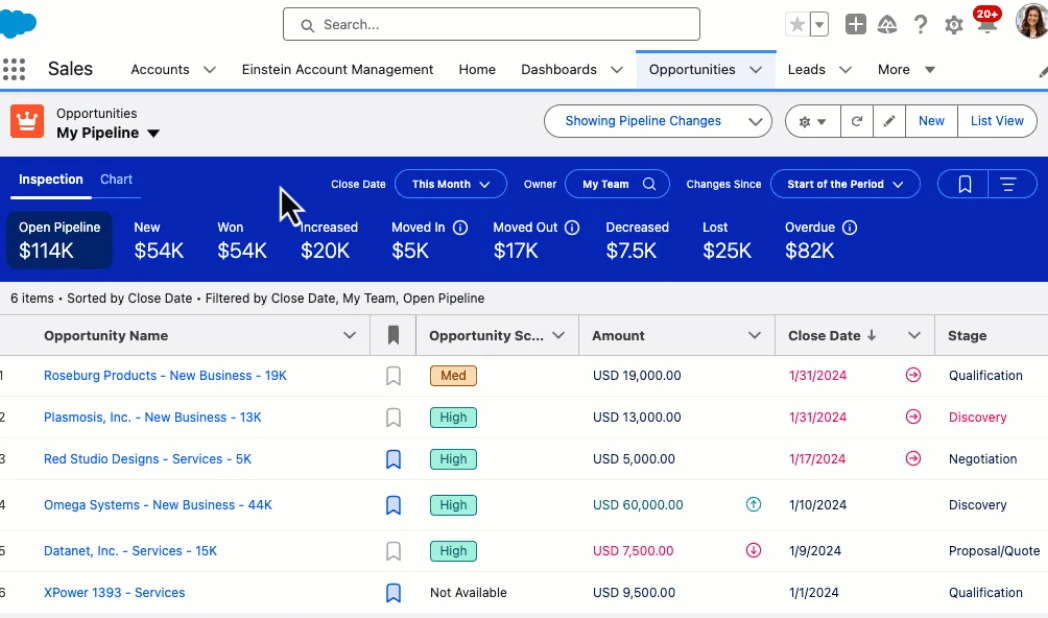
The quick filters are the first control point during a review. Select the close date period, owner scope, team, territory, or changed-since period before you discuss individual deals. This keeps the meeting focused on the current pipeline instead of the full Opportunity table.
What does sfdc pipeline data include?
The term sfdc pipeline usually means open Opportunity data inside Salesforce, grouped by sales process, owner, stage, close period, and forecast category. In pipeline inspection, that data is shown with metrics and change indicators so managers can identify movement since the selected comparison point.
Sfdc pipeline metrics used in Pipeline Inspection
| Metric area | What it answers | Admin note |
|---|---|---|
| Forecast categories | How much pipeline is in categories such as Pipeline, Best Case, Commit, Closed, or Omitted, depending on the org setup. | Validate stage-to-forecast mappings before roll-out. |
| Pipeline changes | Which opportunities are new, increased, decreased, moved in, moved out, won, or lost for the selected period. | The native view uses historical trending for change views. |
| Important opportunities | Which deals a user marked for focused review. | Trailhead notes that users can mark up to 200 opportunities as important. |
| Activity and engagement context | When the last activity happened, whether future activity is scheduled, and which people are involved, depending on enabled features. | Activity data quality depends on task, event, email, and capture configuration. |
| Opportunity score tier | Whether an opportunity is shown as a high, medium, or low scoring deal when Einstein Opportunity Scoring is configured. | Do not show score-based coaching until users understand the inputs and limitations. |
How to set up Pipeline Inspection in Sales Cloud
Set up pipeline inspection from Setup, then test with a sales manager profile or permission set group before you enable it broadly. Salesforce Help lists the main setup tasks: turn on the feature, verify historical trending, add the button to the Opportunity tab, configure optional features, and assign access.
- Go to Setup.
- In Quick Find, enter Pipeline Inspection, then open the setup page.
- Turn on the feature.
- Verify Opportunity historical trending. Salesforce Help states that turning on the feature also turns on historical trending for opportunities, and default fields are configured for tracking.
- Add the button to the Opportunities list view page.
- Assign users the appropriate permission set, depending on the org license model.
- Configure optional features such as Einstein Opportunity Scoring or Revenue Intelligence chart features only when the required licenses and permissions are present.
Salesforce Help also notes that users can be assigned access with a Salesforce Standard User License. For current licensing and packaging, always verify in your production org and the official Salesforce documentation because license names and included permissions can change by release.
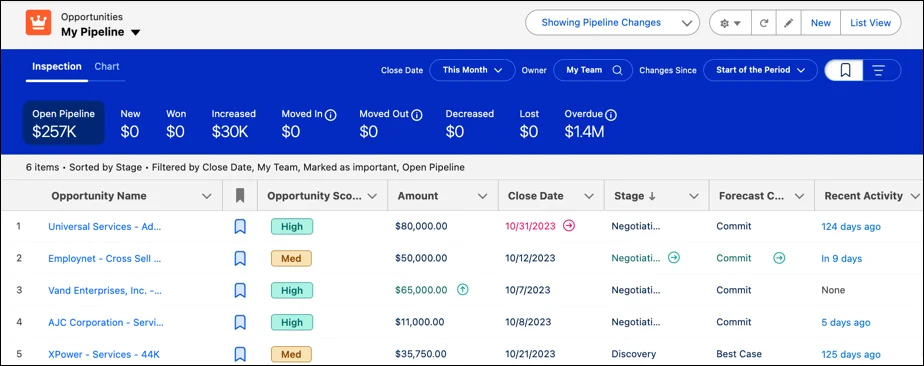
Important opportunities work best when managers define a rule. For example, “mark strategic renewals over $100,000 closing this quarter” is clearer than “mark important deals.” Without a rule, every rep uses a different definition and the filtered view loses meaning.
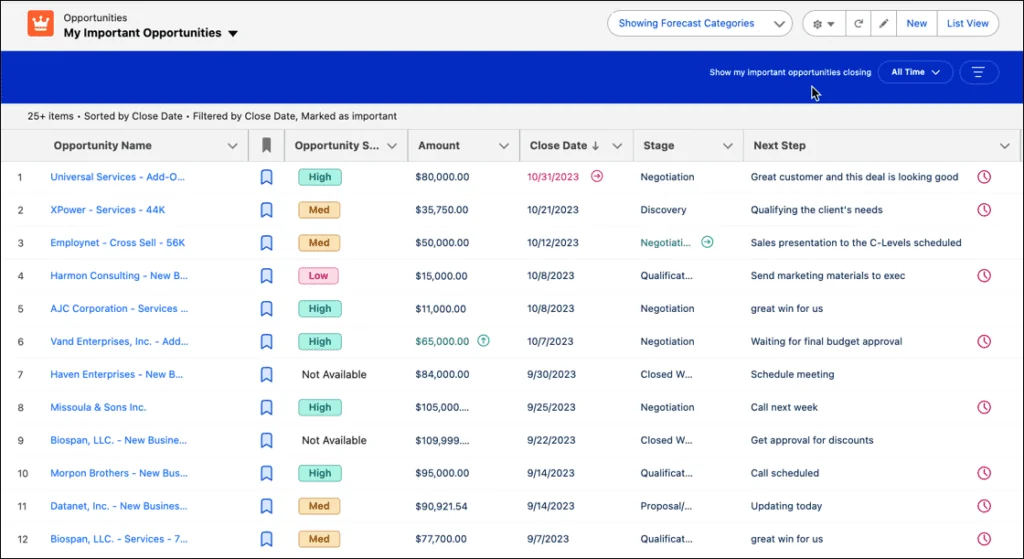
How to conduct a pipeline review using analytics
How to conduct a pipeline review using analytics depends on the meeting type. A weekly sales manager review should start in pipeline inspection; a monthly executive review may combine Pipeline Inspection, Salesforce reports, dashboards, and CRM Analytics.
How to conduct a pipeline review using analytics: a practical sequence
- Choose the period. Start with this quarter, next quarter, or a custom close date range. Do not mix time frames in the same conversation.
- Choose the owner scope. Review one rep, one team, one territory, or the manager’s team. Make the scope visible before discussing metrics.
- Check the forecast category totals. Compare Pipeline, Best Case, Commit, and Closed totals against the quota or target used by the team.
- Open pipeline change metrics. Look for new deals, amount increases, amount decreases, moved-in deals, and moved-out deals.
- Review important opportunities. Focus on the deals that affect the forecast, not every open opportunity.
- Inspect stale data. Look for old next steps, no recent activity, stage age, and close date pushes.
- Capture action items. Update the Opportunity, create tasks, or change the next step while the record is still open.
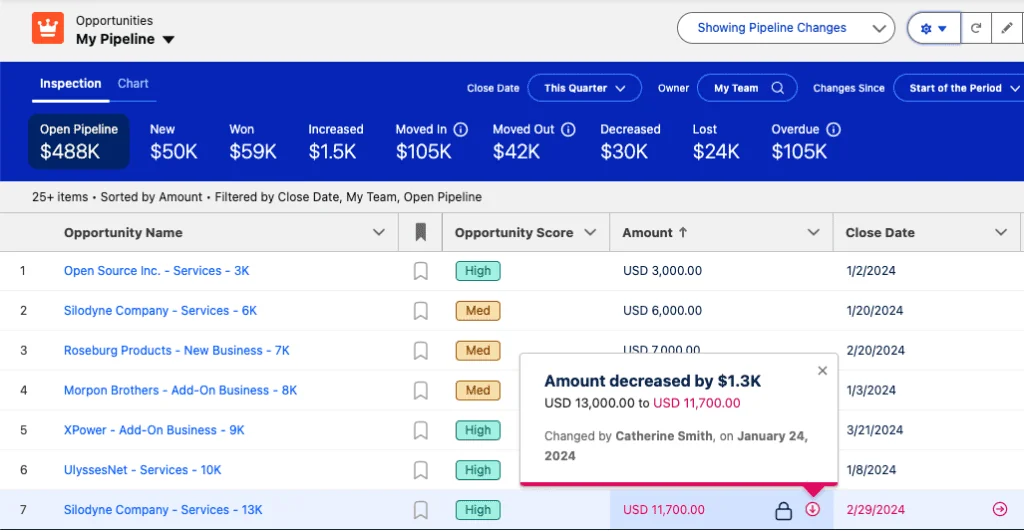
Recent amount and close date changes deserve a separate discussion because they often explain forecast variance. In production reviews, ask two questions for each material change: “What changed in the customer process?” and “Which field update should we make now?”
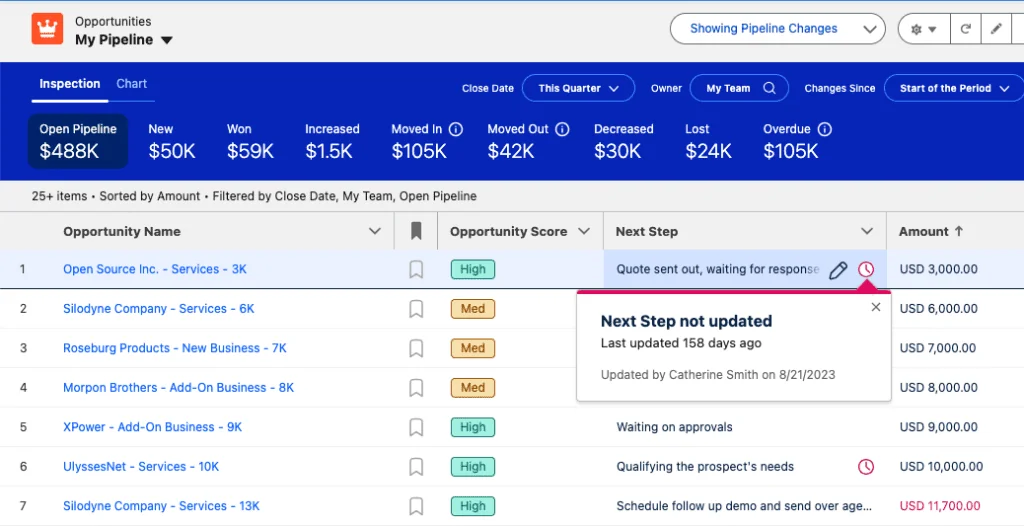
A stale next step is not just a reporting issue. It is a coaching signal. If the next step has not changed but activity is happening, teach reps to update the field. If neither activity nor the next step has changed, inspect deal risk.
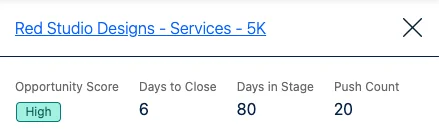
Activity age, stage age, overall opportunity age, and close date push count help the manager separate normal sales cycle length from risk. A late-stage opportunity with no upcoming activity and several close date pushes needs a different conversation than a new opportunity with a long procurement process.
What is pipeline reporting?
What is pipeline reporting in Salesforce? It is the set of reports, dashboards, workspace views, forecast views, and analytics assets that answer pipeline questions. Pipeline inspection is one part of that reporting model, not the whole model.
What is pipeline reporting compared with the workspace?
| Need | Use the workspace when | Use reports, dashboards, or CRM Analytics when |
|---|---|---|
| Rep coaching | The manager needs a live view of opportunity changes and deal context. | The team needs recurring coaching scorecards or scheduled reports. |
| Forecast review | The review focuses on current-period deals and change metrics. | Leadership needs trend charts across several periods or business units. |
| Data quality | The manager wants to update fields inline while discussing the deal. | Admins need exception reports for missing fields, invalid dates, or old tasks. |
| Custom metrics | The required metric exists in the workspace configuration. | The metric needs custom objects, joined datasets, snapshots, or external revenue data. |
For related setup patterns, see our guides on Salesforce forecasting setup, Salesforce reports and dashboards, CRM Analytics in Salesforce, and Salesforce AI features for Sales Cloud.
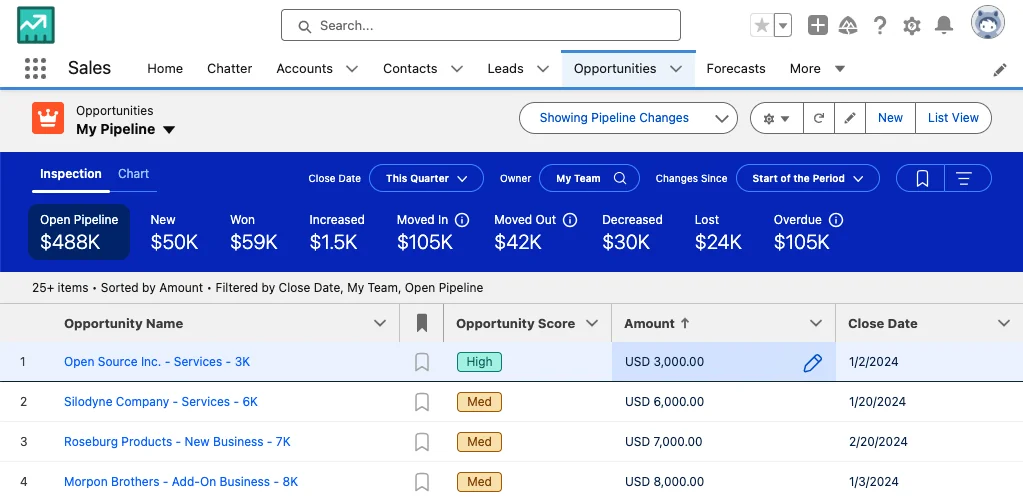
Inline editing is useful during a live review, but it needs governance. Do not let managers overwrite rep-owned fields without an agreed operating model. In enterprise orgs, a better approach is to update facts during the meeting, then assign follow-up tasks for items that need customer confirmation.
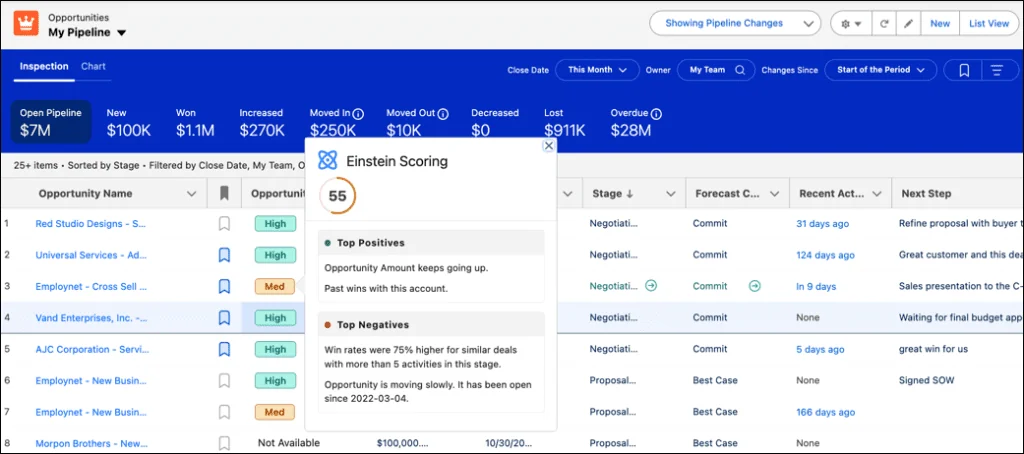
Einstein score tiers can help prioritize review time, but they should not be treated as a replacement for sales judgment. Make sure users understand which Einstein features are enabled, what data they use, and whether the capability is licensed in the org.
SOQL and Apex examples for custom pipeline reporting
Native pipeline inspection should be your first option for the sales review workspace. Use SOQL, Apex, reports, or CRM Analytics when you need a custom experience that the native view does not cover. The examples below are for reporting support, not for changing Salesforce’s internal behavior.
Aggregate open pipeline by owner, forecast category, and stage
This SOQL pattern summarizes open Opportunity amount by owner, forecast category, and stage. It uses one aggregate query and avoids querying individual rows when the user only needs totals. Salesforce documents aggregate queries with GROUP BY and subtotals with GROUP BY ROLLUP.
SELECT OwnerId,
       ForecastCategoryName,
       StageName,
       COUNT(Id) opportunityCount,
       SUM(Amount) totalAmount
FROM Opportunity
WHERE IsClosed = false
AND CloseDate = THIS_QUARTER
GROUP BY OwnerId, ForecastCategoryName, StageName
ORDER BY OwnerId, ForecastCategoryName, StageName
For a large enterprise org, do not add high-cardinality groupings such as AccountId, Product, region, and campaign in the same aggregate query unless you have tested the result size. Aggregate queries can still hit limits when the grouping returns too many rows.
Apex service for a custom pipeline review component
The following Apex class returns summarized pipeline rows for a Lightning Web Component or admin utility. It checks object and field access before running the aggregate query. This avoids exposing Opportunity fields to users who should not see them. Use your org’s sharing model, permission sets, and field-level security as the source of truth.
public with sharing class PipelineReviewService {
    public class PipelineSummary {
        @AuraEnabled public Id ownerId;
        @AuraEnabled public String forecastCategory;
        @AuraEnabled public String stageName;
        @AuraEnabled public Integer opportunityCount;
        @AuraEnabled public Decimal totalAmount;

        public PipelineSummary(
            Id ownerId,
            String forecastCategory,
            String stageName,
            Integer opportunityCount,
            Decimal totalAmount
        ) {
            this.ownerId = ownerId;
            this.forecastCategory = forecastCategory;
            this.stageName = stageName;
            this.opportunityCount = opportunityCount;
            this.totalAmount = totalAmount;
        }
    }

    @AuraEnabled(cacheable=true)
    public static List<PipelineSummary> getOpenPipeline(Date startDate, Date endDate) {
        if (startDate == null || endDate == null || endDate < startDate) {
            throw new AuraHandledException('Enter a valid close date range.');
        }

        if (!Schema.sObjectType.Opportunity.isAccessible()) {
            throw new AuraHandledException('You do not have access to Opportunity.');
        }

        Map<String, Schema.SObjectField> fields =
            Schema.sObjectType.Opportunity.fields.getMap();

        for (String fieldName : new List<String>{
            'OwnerId', 'ForecastCategoryName', 'StageName', 'Amount', 'CloseDate', 'IsClosed'
        }) {
            if (!fields.get(fieldName).getDescribe().isAccessible()) {
                throw new AuraHandledException('You do not have access to required Opportunity fields.');
            }
        }

        List<AggregateResult> rows = [
            SELECT OwnerId ownerId,
                   ForecastCategoryName forecastCategory,
                   StageName stageName,
                   COUNT(Id) opportunityCount,
                   SUM(Amount) totalAmount
            FROM Opportunity
            WHERE IsClosed = false
            AND CloseDate >= :startDate
            AND CloseDate <= :endDate
            GROUP BY OwnerId, ForecastCategoryName, StageName
            ORDER BY OwnerId, ForecastCategoryName, StageName
        ];

        List<PipelineSummary> summaries = new List<PipelineSummary>();
        for (AggregateResult row : rows) {
            summaries.add(new PipelineSummary(
                (Id) row.get('ownerId'),
                (String) row.get('forecastCategory'),
                (String) row.get('stageName'),
                (Integer) row.get('opportunityCount'),
                (Decimal) row.get('totalAmount')
            ));
        }
        return summaries;
    }
}
Governor limit note: this method uses one SOQL query and no DML. Keep it read-only and cacheable. If you later add owner names, query the small set of User records by OwnerId in one additional SOQL query rather than placing a query inside the loop.
Security note: Apex does not automatically enforce object and field permissions in every context. Salesforce documents WITH SECURITY_ENFORCED and Security.stripInaccessible for enforcing data access in Apex. Choose the pattern that matches whether you want to fail the request or remove inaccessible fields.
Query opportunity change history for a custom audit view
Salesforce documents OpportunityFieldHistory as the object that represents changes to tracked Opportunity fields and notes that it is available in API version 13.0 and later. This is useful for a custom audit or exception report, but it is not the same thing as the native change engine.
SELECT OpportunityId,
       Field,
       OldValue,
       NewValue,
       CreatedDate,
       CreatedBy.Name
FROM OpportunityFieldHistory
WHERE OpportunityId IN :opportunityIds
AND Field IN ('Amount', 'CloseDate', 'StageName', 'ForecastCategoryName')
AND CreatedDate = LAST_N_DAYS:30
ORDER BY CreatedDate DESC
Use this query only after confirming field history tracking requirements for your org. If a field is not tracked, the history table cannot report changes that were never captured. For analytics at scale, consider CRM Analytics or snapshot-based reporting rather than repeatedly querying wide history ranges from Apex.
Best practices for Sales Cloud pipeline adoption
- Start with one sales process. Roll out the workspace to one sales team, one record type, or one business unit before a global release.
- Define review questions. A good review asks about changed amount, moved close dates, next step quality, stalled stages, and missing activity.
- Keep fields consistent. If different teams use Opportunity fields differently, create separate saved views or standardize the process first.
- Train managers and reps together. Managers should not use the page only as an inspection tool. Reps need to know which fields drive the review.
- Document optional features. Note which Einstein, activity capture, Revenue Intelligence, and CRM Analytics features are enabled in the org.
- Protect data access. Use permission sets, field-level security, record sharing, and reports folder permissions to match the organization’s sales hierarchy.
Common setup errors
| Error or symptom | Likely cause | Fix |
|---|---|---|
| The button is missing. | The button was not added to the Opportunities list view page, or the user is in an app where it is not exposed. | Return to the setup page and add the button. Test from the Sales app and Opportunities tab. |
| A user sees fewer opportunities than the manager expects. | Record access restricts the user’s view. | Check role hierarchy, sharing rules, territories, teams, and ownership. Do not bypass sharing just for a review page. |
| Change metrics look incomplete. | Historical trending was not enabled early enough or fields were not configured as expected. | Verify Opportunity historical trending settings and allow time for new changes to be captured. |
| Score tiers are not visible. | Einstein Opportunity Scoring is not configured or the user lacks access. | Review Einstein Opportunity Scoring setup, licenses, and user permissions. |
| Flow chart is not available. | The org or user does not have the required Revenue Intelligence permissions. | Verify Revenue Intelligence licenses, permission sets, and chart setup. |
Frequently Asked Questions
What is pipeline inspection in Salesforce?
Pipeline inspection is a Sales Cloud workspace for reviewing opportunity pipeline metrics, opportunity changes, deal health signals, activity context, and selected pipeline charts from the Opportunities tab. It helps sales managers and reps review the same opportunity data without moving between several reports.
How is pipeline inspection different from Salesforce reports?
Pipeline inspection is an interactive opportunity review workspace, while Salesforce reports are reusable tabular, summary, matrix, or joined views. Use pipeline inspection for live deal reviews, coaching, important opportunities, and change indicators. Use reports and dashboards when you need scheduled delivery, custom report types, historical snapshots outside the Pipeline Inspection view, or broader executive reporting.
Does pipeline inspection require Revenue Intelligence?
Basic pipeline inspection features are available without Revenue Intelligence in supported Sales Cloud editions. Revenue Intelligence can add capabilities such as the flow chart and broader analytics experiences. Check your org licenses and permission sets before promising a chart or Einstein feature to users.
What permissions do users need for pipeline inspection?
Users need access through the Pipeline Inspection permission set, Pipeline Inspection Included permission set, or a Revenue Intelligence permission set, depending on the licenses in the org. They also need normal object, record, and field access to the opportunity data they expect to review.
How do I conduct a pipeline review using analytics in Salesforce?
Start with a saved Pipeline Inspection view for the right period and owner scope. Review forecast category totals, pipeline change metrics, important opportunities, stale next steps, close date pushes, stage age, and activity context. Then validate the same questions in reports, dashboards, or CRM Analytics when leadership needs a recurring view outside the Pipeline Inspection page.