Salesforce dynamic forms let admins move fields out of one large Record Detail component and place them as individual fields or sections on a Lightning record page. Use them when a record page needs different fields for different roles, record states, or business processes without creating a long chain of page layouts.
This guide explains what to configure, what to test, where related object fields fit, and how mobile behavior works. The examples assume Lightning Experience and Lightning App Builder, not Salesforce Classic.
Salesforce Dynamic Forms: What changes on the record page?
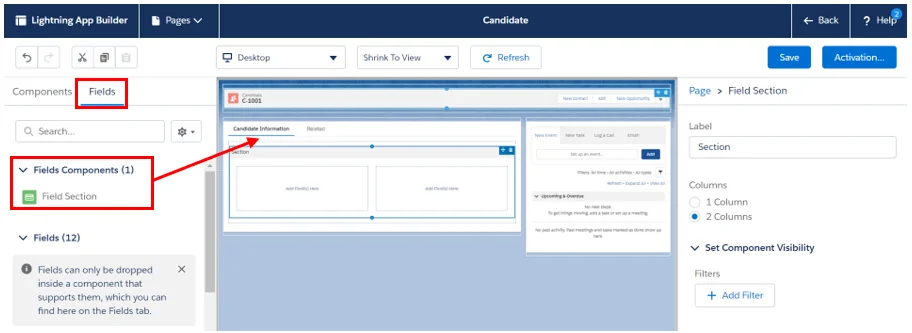
Salesforce Dynamic Forms changes the record page from a layout-driven form into a component-driven form. Instead of placing one Record Detail component on the page and letting the object page layout decide every field, you add Field Section components and drag fields into those sections.
In enterprise orgs, this matters because one object often serves multiple teams. A Case may need escalation fields for support managers, entitlement fields for service operations, and root-cause fields for product teams. With Dynamic Forms, you can keep those fields on the same Lightning record page and use visibility filters to show the right section at the right time.
Salesforce Help describes Dynamic Forms as a way to break record details into field and section components in Lightning App Builder. Salesforce also documents migration from an existing record page, mobile considerations, limitations, and cross-object field behavior in the official Help pages listed near the end of this article.
| Requirement | Use Salesforce Dynamic Forms? | Why |
|---|---|---|
| Show a warranty section only when Case Type equals Product Issue | Yes | Use component visibility on a Field Section. |
| Make one field read-only on the record page | Yes, with limits | Use the field behavior property, then still enforce security with permissions and validation. |
| Show Account Annual Revenue on a Contact page | Yes, if the relationship is supported | Use cross-object fields from the Fields panel. |
| Edit five related child records in one grid | No | Use a related list, screen flow, or custom LWC. |
| Run server-side validation on save | No | Use validation rules, flows, Apex, or database constraints. |
How to enable Salesforce Dynamic Forms on a Lightning page
You enable salesforce dynamic forms from Lightning App Builder. Work in a sandbox first if the page belongs to a production object used by sales, service, or operations teams.
- Open Setup and go to Object Manager.
- Select the object, then open Lightning Record Pages.
- Edit an existing record page or create a new record page.
- Select the existing Record Detail component, then use the Salesforce Dynamic Forms migration option when it appears.
- Choose the source layout, review the migrated sections, and save the page.
- Activate the page for the org, app, app and profile, or app, record type, and profile as required.
The migration does not remove the need for page design. It gives you a starting set of sections. After migration, rename sections, remove fields that do not belong on the first screen, and group fields by user decision rather than by database ownership.
Dynamic form salesforce setup checklist
A dynamic form salesforce setup should start with the object, record type, and user group. Do not begin by dragging every field onto the canvas. Start with the decision the user must make on the record.
- Confirm object support. Salesforce supports Dynamic Forms for custom objects and many standard LWC-enabled objects, but not every standard object.
- Check the Fields tab. In Lightning App Builder, the Fields panel is the simplest sign that Salesforce Dynamic Forms is available for that record page.
- Keep required system fields visible. Users should not discover missing required data only after clicking Save.
- Move low-use sections behind tabs or accordions. This reduces first-screen noise and helps page load behavior.
- Test as real users. Use permission sets, profiles, record types, and app assignments that match production.
How to add fields, sections, and UI behavior
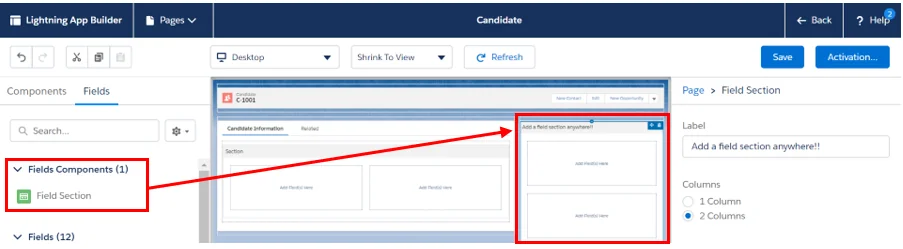
After the migration, add a Field Section component, name it, and drag fields into it from the Fields panel. Field sections can sit in the main region, inside tabs, or inside an accordion. Keep each section focused on one task, such as qualification, billing review, renewal approval, or support closure.
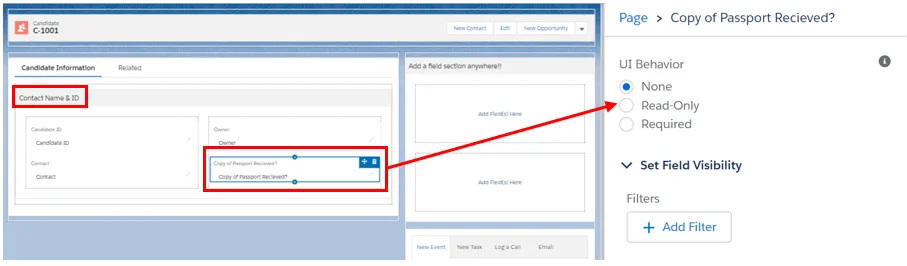
Field properties can set page-level behavior such as required or read-only. Treat these as interface rules, not full security controls. A field marked required on a Dynamic Forms page helps the user complete that screen, but validation rules, universally required fields, and automation still decide whether the database accepts the save.
Dynamic fields and field section behavior
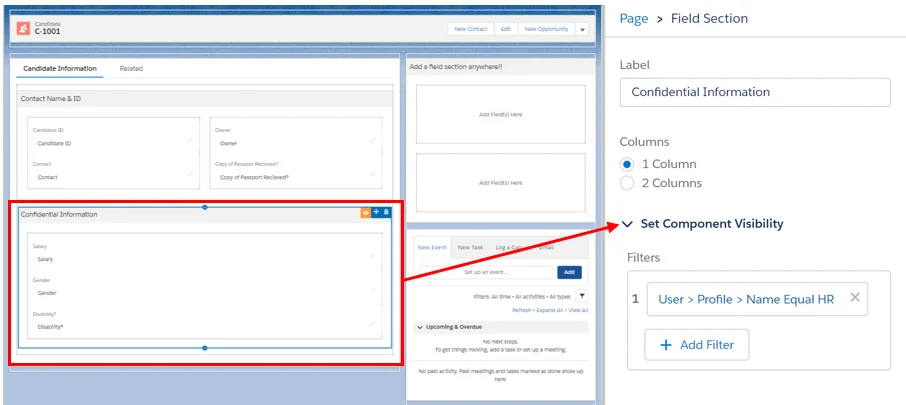
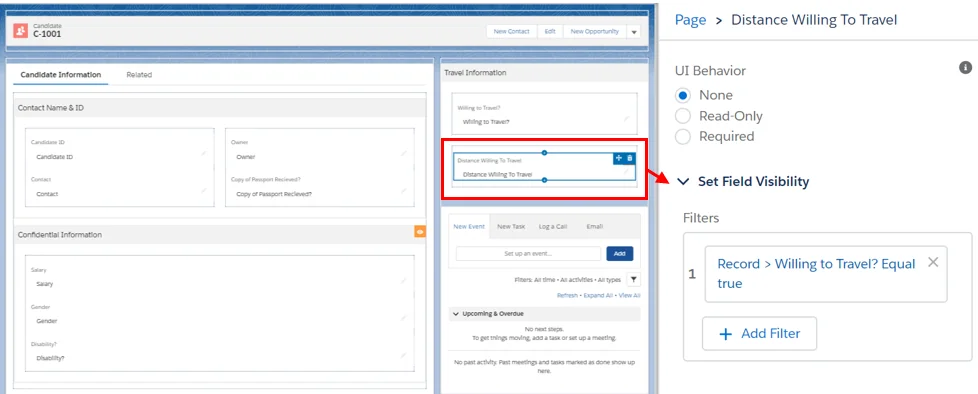
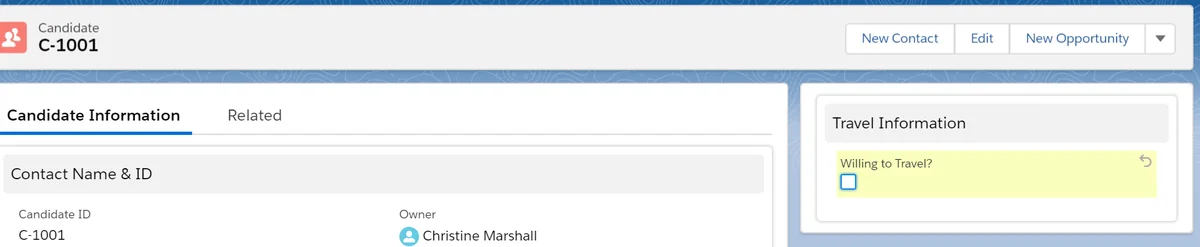
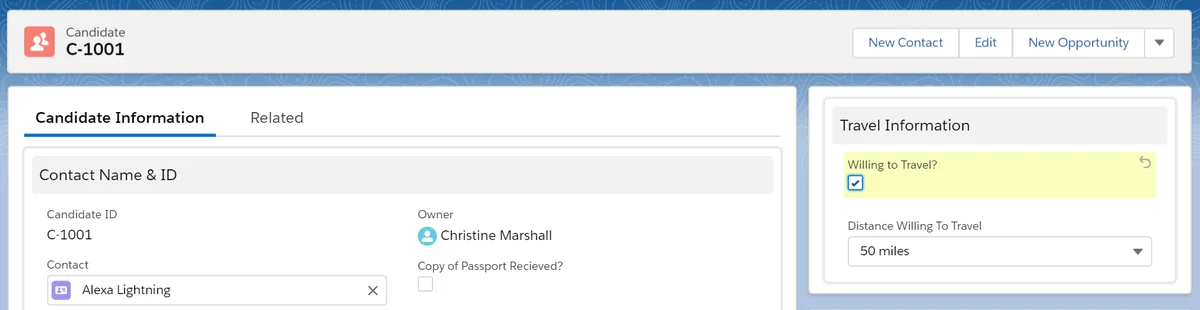
The phrase dynamic fields usually means fields that appear, disappear, or change behavior based on filters. In Salesforce Dynamic Forms, you can apply visibility rules to a field or to a whole field section. Field-level rules are useful for small dependencies. Section-level rules are better when several fields belong to the same process state.
For example, on an Opportunity page, a Legal Review section can appear when Amount is above a threshold and Stage equals Negotiation. On a Case page, a Refund Details field can appear only when Resolution Type equals Refund. These dynamic fields keep the page shorter without hiding data that the current user must enter.
How to use visibility rules without breaking data quality
Visibility rules are the main reason teams adopt salesforce dynamic forms. They also create the main design risk: users may not see a field that is required by another rule. Design the page so required data appears before save, or enforce the rule in validation with a message that tells the user what to fix.
Use these patterns in production orgs:
- Base visibility on stable fields. Record Type, Stage, Status, and Type usually work better than fields users change repeatedly during one edit.
- Avoid hiding audit fields from admins. If support teams need to troubleshoot automation, give them a diagnostics section instead of removing fields completely.
- Use custom permissions for role logic. Profile-name filters become hard to maintain after permission set groups and role changes.
- Keep validation messages aligned. If a hidden field can block save, the validation message should tell the user which section to open or which value to change.
For field-level conditions, test create, edit, clone, and inline edit paths. A layout that works when editing an existing record may behave differently when a new record starts with blank values.
How to get hands-on with related object fields on Dynamic Forms
The keyword phrase get hands-on with related object fields on dynamic forms refers to a common admin task: show data from a lookup-related record on the current record page. Salesforce documentation calls these cross-object fields in Dynamic Forms. You select a lookup relationship in the Fields panel, drill into that related object, and drag the related field onto the base Lightning record page.
A common example is a Contact record page that shows Account fields such as Account Type, Industry, or Annual Revenue. This avoids a context switch when the user only needs to read a few parent values. It does not mean every relationship behaves the same way. Salesforce documents that polymorphic relationship fields are not supported as cross-object fields, so lookup fields such as WhoId or WhatId style relationships need special care.
Get hands-on with related object fields on dynamic forms in a sandbox
- Create or edit a Lightning record page for the base object, such as Contact.
- Upgrade the Record Detail component to Salesforce Dynamic Forms if the page is not already migrated.
- Open the Fields panel and find the lookup relationship, such as Account Name.
- Drill into the relationship and choose a parent field, such as Account Annual Revenue.
- Drag the field into the right section, save, and activate the page in a sandbox.
- Log in as a user who has access to the base object and the related object field.
If the field does not appear, check object support, field-level security on the related field, relationship type, and whether the page activation assignment matches the test user. The get hands-on with related object fields on dynamic forms exercise often fails when the page is not activated as expected or the admin adds a custom field with the same label instead of using the parent object field.
How to enable page level dynamic actions for the Salesforce mobile app
Salesforce Dynamic Forms controls fields. Dynamic Actions controls actions. The setting named enable page level dynamic actions for the salesforce mobile app matters when you want the Salesforce mobile app action bar to use page-level actions configured in Lightning App Builder.
Salesforce Help says that when this option is selected, page-level actions configured in the page properties pane apply in the Salesforce mobile app. Use it when mobile users need different actions by record state, such as Submit for Approval only before approval, Close Case only for support users, or Escalate only for high-priority cases.
Enable page level dynamic actions for the salesforce mobile app checklist
- Open the Lightning record page in Lightning App Builder.
- Select the page canvas or page properties area.
- Enable page-level dynamic actions for the Salesforce mobile app when the option is available.
- Configure action visibility rules on the relevant actions.
- Preview the phone form factor and test in the Salesforce mobile app, not only desktop.
Do not mix too many field visibility rules and action visibility rules without a naming convention. In a service org, use labels such as Case Mobile Actions – Agent or Opportunity Actions – Renewal Manager so future admins can understand the rule set.

How Salesforce Dynamic Forms works on mobile
Salesforce Help lists Salesforce Dynamic Forms on Mobile as generally available and documents a Setup path under Salesforce Mobile App settings. Newer orgs may have mobile Dynamic Forms enabled by default, but existing orgs should still verify the setting after sandbox refreshes and release updates.
There is one mobile detail that causes many rollout issues: if a migrated page contains Record Detail – Mobile, mobile users may see the mobile record detail layout instead of the Salesforce Dynamic Forms field layout. Review the phone form factor in Lightning App Builder and remove that component when the goal is to use the Salesforce Dynamic Forms page on mobile.
For mobile-first teams, design with fewer sections, shorter labels, and fewer conditional branches. A desktop page can tolerate more fields above the fold than a phone page. A field that is visible on desktop but buried behind three collapsed mobile sections may still slow the user down.
Best practices for Salesforce Dynamic Forms in enterprise orgs
Use salesforce dynamic forms as a record-page architecture tool, not as a place to hide every data problem. The best implementations have a page model, a security model, and a release process.
| Area | Recommended practice | What to avoid |
|---|---|---|
| Security | Use permission sets, permission set groups, and field-level security for access. | Relying on visibility filters as a security boundary. |
| Page design | Group fields by user task and record lifecycle. | Recreating the old page layout section by section without cleanup. |
| Performance | Move rarely used sections into tabs or accordions and use the Analyze tool. | Loading every field and component on the first screen. |
| Governance | Name sections and actions with object, process, and audience. | Names like Section 1, Manager Fields, or New Section. |
| Testing | Test record types, apps, profiles, permission sets, desktop, and mobile. | Testing only as System Administrator. |
Visibility is not the same as authorization. If a user should never access a field, remove access with field-level security. If a user can access a field but only needs it in certain scenarios, use Salesforce Dynamic Forms visibility.
When a custom LWC is better than Salesforce Dynamic Forms
Salesforce dynamic forms is metadata configuration. It is not a replacement for a custom component when users need multi-step logic, multi-record edits, external calls, or UI behavior that depends on calculations outside the current record.
For a custom LWC that still respects Salesforce data access, prefer Lightning Data Service and User Interface API where possible. Salesforce Developer documentation states that UI API responses respect CRUD, field-level security, and sharing, and that lightning-record-edit-form uses Lightning Data Service.
import { LightningElement, api, wire } from 'lwc';
import { getRecord, getFieldValue } from 'lightning/uiRecordApi';
import CASE_STATUS_FIELD from '@salesforce/schema/Case.Status';
import CASE_PRIORITY_FIELD from '@salesforce/schema/Case.Priority';

const FIELDS = [CASE_STATUS_FIELD, CASE_PRIORITY_FIELD];

export default class CaseDecisionPanel extends LightningElement {
    @api recordId;

    @wire(getRecord, { recordId: '$recordId', fields: FIELDS })
    caseRecord;

    get status() {
        return getFieldValue(this.caseRecord.data, CASE_STATUS_FIELD);
    }

    get priority() {
        return getFieldValue(this.caseRecord.data, CASE_PRIORITY_FIELD);
    }

    get showEscalationMessage() {
        return this.status !== 'Closed' && this.priority === 'High';
    }
}
<template>
<template if:true={showEscalationMessage}>
<lightning-card title="Escalation Review">
<p class="slds-p-horizontal_medium">
Review the escalation fields before changing the case owner.
</p>
</lightning-card>
</template>
</template>This component reads only the fields it needs. It does not run SOQL, so it avoids Apex governor limits for this use case. If you must use Apex for an unsupported object or server-side query, bulkify the code, enforce CRUD/FLS with user-mode operations or security checks, and keep SOQL outside loops.
Common errors with Salesforce Dynamic Forms
The Fields tab does not appear
The object or page may not support Dynamic Forms. Salesforce documents that Dynamic Forms is supported for most but not all standard LWC-enabled objects, and not for objects that are not LWC-enabled.
The related object field is missing
Check whether the relationship is supported, whether the user has field access on the related object, and whether the field is from the parent object rather than a newly created field with the same label.
The mobile page does not match desktop
Verify the Dynamic Forms on Mobile setting and check whether the page still contains the Record Detail – Mobile component. Also test app assignments because a phone user can receive a different activated page than a desktop admin expects.
A required field is hidden
Move the field into a visible section, change the visibility rule, or add a validation message that tells the user what condition exposes the required field. Do not rely on hidden required fields to guide users.
Official Salesforce documentation referenced
- Break Up Your Record Details with Dynamic Forms
- Migrate a Record Page to Dynamic Forms
- Dynamic Forms Limitations
- Cross-Object Fields in Dynamic Forms
- Enable Dynamic Forms on Mobile
- Create Dynamic Actions in Lightning App Builder
- getRecord Wire Adapter
- Lightning Data Service and UI API data access
Related SalesforceTutorial guides
- Salesforce Lightning App Builder configuration guide
- Salesforce page layouts and record page differences
- Salesforce Dynamic Actions setup guide
- Salesforce permission sets and field-level security
- Lightning Web Components tutorial for Salesforce developers
Frequently Asked Questions
What are Salesforce Dynamic Forms used for?
Salesforce Dynamic Forms are used to place individual fields and field sections directly on Lightning record pages, then control when users see them. They reduce the need for many page layouts when the difference is mainly field placement or visibility.
Is Dynamic Forms available for standard objects?
Dynamic Forms supports custom objects and many standard objects that are Lightning Web Component enabled. Salesforce does not support every standard object, so check the Lightning App Builder for the Fields tab and review the Dynamic Forms limitations page before planning a rollout.
Can Dynamic Forms replace validation rules?
No. Dynamic Forms can make a field required in the user interface and can hide or show fields, but validation rules, required fields, record types, and permissions still control whether a record can be saved. Use Dynamic Forms for page behavior and use validation rules or flows for data rules that must always run.
How do related object fields work in Dynamic Forms?
Related object fields, also called cross-object fields in Dynamic Forms, let you show fields from a lookup-related record on the base record page. For example, a Contact page can display selected Account fields. Salesforce documentation notes limits such as unsupported polymorphic relationships, so test each relationship before rollout.
Do Salesforce Dynamic Forms work in the Salesforce mobile app?
Yes, Salesforce Help lists Dynamic Forms on Mobile as generally available. Admins should still verify the Salesforce Mobile App setting, test the phone form factor in Lightning App Builder, and remove the Record Detail – Mobile component if it is overriding the Dynamic Forms layout.
When should I build a custom LWC instead of using Dynamic Forms?
Use Dynamic Forms when the requirement is field placement, page-level visibility, or related field display. Build a custom Lightning Web Component when the form needs custom validation flow, multi-record editing, complex calculations, external service calls, or a UI that Dynamic Forms cannot model.