The apex:page tag is the foundational element of every Visualforce page in Salesforce. This tag defines the root container and controls page-level behavior, styling, and data access. Every Visualforce page must begin with <apex:page> and end with </apex:page>.
In this tutorial, we’ll cover the complete syntax, essential attributes, and practical examples to help you build effective Visualforce pages.
What is the apex:page Tag?
The <apex:page> tag serves as the root element for all Visualforce pages. It defines the page structure, data context, and rendering behavior. Unlike other Visualforce tags that can appear multiple times, the apex:page tag appears exactly once per page.
Key characteristics:
- Required root element for all Visualforce pages
- Controls page-level properties like controllers, styling, and caching
- Supports both standard and custom controllers
- Available since API version 10.0
Essential apex:page Attributes
The apex:page tag supports numerous attributes that control page behavior. Here are the most commonly used attributes organized by category:
Controller Attributes
| Attribute | Description | Example |
|---|---|---|
| standardController | Specifies the standard object for automatic CRUD operations | standardController="Account" |
| controller | References a custom Apex controller class | controller="MyCustomController" |
| extensions | Comma-separated list of controller extension classes | extensions="Extension1,Extension2" |
| recordSetVar | Variable name for list controller record set | recordSetVar="accounts" |
Display and Styling Attributes
| Attribute | Description | Default |
|---|---|---|
| showHeader | Controls Salesforce header display | true |
| sidebar | Controls sidebar display | true |
| standardStylesheets | Includes standard Salesforce CSS | true |
| title | Sets the page title in browser tab | Page name |
| tabStyle | Applies tab styling from standard/custom objects | None |
Technical Attributes
| Attribute | Description | Usage |
|---|---|---|
| apiVersion | Specifies Salesforce API version | apiVersion="60.0" |
| cache | Enables page caching | cache="true" |
| expires | Cache expiration time in seconds | expires="600" |
| contentType | MIME type for page output | contentType="application/pdf" |
| renderAs | Output format (html, pdf, excel) | renderAs="pdf" |

Basic Visualforce Page Structure
Every Visualforce page follows this basic structure:
<apex:page>
    <!-- Page content goes here -->
    <h1>Welcome to Salesforce Training</h1>
    <p>This is a basic Visualforce page example.</p>
</apex:page>
Create a new Visualforce page as shown below:
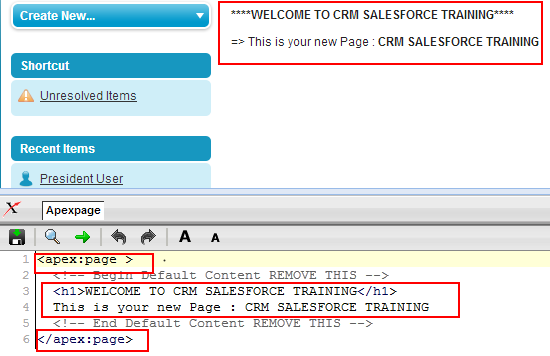
Every Visualforce page must start with the <apex:page> tag and end with </apex:page>. All page content must be written between these tags. Comments can be added using standard HTML comment syntax <!-- comment -->.
Visualforce Page Examples with Controllers
Standard Controller Example
This example uses a standard controller to display Account data:
<apex:page standardController="Account">
    <apex:form>
        <apex:pageBlock title="Account Details">
            <apex:pageBlockSection>
                <apex:inputField value="{!Account.Name}"/>
                <apex:inputField value="{!Account.Industry}"/>
                <apex:inputField value="{!Account.Phone}"/>
                <apex:inputField value="{!Account.Website}"/>
            </apex:pageBlockSection>
            <apex:pageBlockButtons>
                <apex:commandButton action="{!save}" value="Save"/>
                <apex:commandButton action="{!cancel}" value="Cancel"/>
            </apex:pageBlockButtons>
        </apex:pageBlock>
    </apex:form>
</apex:page>
Custom Controller Example
This example demonstrates a Visualforce page with a custom controller:
Apex Controller:
public class ContactListController {
    public List<Contact> contacts {get; set;}

    public ContactListController() {
        contacts = [SELECT Id, Name, Email, Phone
                   FROM Contact
                   WHERE CreatedDate = LAST_N_DAYS:30
                   LIMIT 50];
    }

    public PageReference refreshList() {
        // Refresh the contact list
        contacts = [SELECT Id, Name, Email, Phone
                   FROM Contact
                   WHERE CreatedDate = LAST_N_DAYS:30
                   LIMIT 50];
        return null;
    }
}
Visualforce Page:
<apex:page controller="ContactListController"
           title="Recent Contacts"
           tabStyle="Contact">
    <apex:form>
        <apex:pageBlock title="Recent Contacts (Last 30 Days)">
            <apex:pageBlockButtons>
                <apex:commandButton action="{!refreshList}"
                                   value="Refresh"
                                   reRender="contactTable"/>
            </apex:pageBlockButtons>
            <apex:pageBlockTable value="{!contacts}"
                                var="contact"
                                id="contactTable">
                <apex:column value="{!contact.Name}"/>
                <apex:column value="{!contact.Email}"/>
                <apex:column value="{!contact.Phone}"/>
            </apex:pageBlockTable>
        </apex:pageBlock>
    </apex:form>
</apex:page>
Advanced apex:page Configuration
PDF Generation
Generate PDF output by setting the renderAs attribute:
<apex:page standardController="Account"
           renderAs="pdf"
           showHeader="false"
           sidebar="false">
    <h1>Account Report</h1>
    <p>Account Name: {!Account.Name}</p>
    <p>Industry: {!Account.Industry}</p>
    <p>Annual Revenue: {!Account.AnnualRevenue}</p>
</apex:page>
Caching Configuration
Enable caching for better performance on static content:
<apex:page cache="true"
           expires="3600"
           standardStylesheets="false">
    <!-- Static content that rarely changes -->
    <h1>Company Policies</h1>
    <p>This content is cached for 1 hour (3600 seconds).</p>
</apex:page>
Best Practices for apex:page Tag
- API Version: Always specify the latest API version for new pages:
apiVersion="60.0" - Performance: Use caching for static content and set appropriate expires values
- Security: Implement proper CRUD/FLS checks in custom controllers
- Mobile: Consider mobile rendering when designing page layouts
- Governor Limits: Be mindful of SOQL queries and DML operations in controllers
- Error Handling: Implement try-catch blocks in custom controller methods
Common apex:page Errors and Solutions
Missing Controller Reference
Error: “Unknown controller ‘MyController'”
Solution: Ensure the controller class exists and is properly named. Check for typos in the controller attribute.
Invalid Attribute Combination
Error: “Cannot specify both standardController and controller”
Solution: Use either standardController OR controller, not both. Use extensions with standardController for additional functionality.
API Version Compatibility
Error: Feature not available in specified API version
Solution: Update apiVersion to the minimum version that supports the required features.
Visualforce vs Lightning Experience
While Lightning Web Components (LWC) and Aura Components are the modern development approach, Visualforce pages remain important for:
- Legacy system integrations
- PDF generation and document creation
- Complex page layouts requiring fine-grained control
- Integration with third-party systems
- Custom user interfaces for specific business processes
Note: Visualforce pages display differently in Lightning Experience compared to Salesforce Classic. Test thoroughly in both interfaces when applicable.
Frequently Asked Questions
What is the apex:page tag in Visualforce?
The apex:page tag is the root element required for all Visualforce pages. It defines the page structure, controller binding, and rendering behavior. Every Visualforce page must start with <apex:page> and end with </apex:page>.
Can I use both standardController and controller attributes together?
No, you cannot use both standardController and controller attributes on the same apex:page tag. Use standardController for automatic CRUD operations on standard objects, or controller for custom logic. Use extensions with standardController to add custom functionality.
How do I create a Visualforce page with custom controller example?
Create an Apex class with public methods and properties, then reference it using controller=”YourClassName”. The controller handles data processing and user interactions. Example: <apex:page controller=”ContactListController”> where ContactListController is your custom Apex class.
What are the most important Visualforce page tags to learn?
Essential Visualforce tags include apex:page (root element), apex:form (form container), apex:pageBlock (styled sections), apex:inputField (data input), apex:outputField (data display), apex:commandButton (actions), and apex:pageBlockTable (data tables). Master these core tags first.
How do I specify API version in Visualforce pages?
Use the apiVersion attribute on the apex:page tag: <apex:page apiVersion=”60.0″>. Always use the latest API version for new pages to access current features. The API version determines which Salesforce features and syntax are available.
Can Visualforce pages work in Lightning Experience?
Yes, Visualforce pages work in Lightning Experience but may display differently than in Salesforce Classic. Test thoroughly in both interfaces. Some styling and JavaScript behaviors may need adjustment for optimal Lightning Experience compatibility.